Smart home devices — from cameras to assistants — send data to the cloud. That traffic can be visible to your ISP and, on shared networks, to others. Putting a VPN on your router encrypts traffic from all devices that use that router, adding a layer of privacy without installing anything on each device.
The average home now has dozens of connected devices: thermostats, doorbells, lights, speakers, TVs, and more. Each one communicates with manufacturer servers for updates, remote control, and analytics. Your internet service provider can see these connections — which services your devices talk to, how often, and sometimes even infer device types from traffic patterns. On shared networks, such as apartment WiFi or guest networks, other users could potentially observe this traffic.
Most smart devices cannot run a VPN app. They lack the software, the processing power, or the user interface. The practical solution is to run the VPN at the router level. One configuration protects every device behind that router. This guide explains why smart home traffic matters for privacy, how router VPN works, which devices benefit most, and how to set it up correctly.
Router VPN is not a substitute for strong device passwords, firmware updates, or careful app permissions. It is one layer in a defense-in-depth approach. But for traffic leaving your network — the data your cameras, speakers, and thermostats send to the cloud — router VPN is the most practical way to add encryption without replacing or modifying each device.
Related reading: What Is a VPN and How Does It Work? and How to Use a VPN on Public WiFi Safely. VPN on iPad as a Travel Kit: One Seat, Not a Second iPhone Guide and VPN on a Public PC: Kiosk You Do Not Own. What is a VPN? and Download KloxVPN.
Looking for a reliable VPN?
KloxVPN — from $2.83/month. Apps for every device.
Why Smart Home Traffic Matters
IoT devices often phone home for updates, analytics, and remote control. Your ISP can see that traffic; in some cases they can infer which devices you use. A VPN encrypts the path so that the network cannot see the content or destination. The volume of smart home traffic has grown sharply. A typical household may have 20-50 connected devices. Each generates outbound connections. The aggregate reveals a lot about your home.
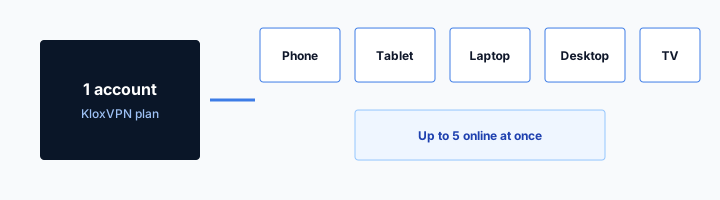
- 1Skim the seating / order diagram.
- 2Do the numbered steps once on your real network.
- 3Use the FAQ if a sentence was too long.
- 4Follow one related article — not ten tabs.
How to read this page
What Smart Home Devices Send
Smart speakers send voice commands and queries to cloud servers. Cameras stream video to manufacturer or third-party storage. Thermostats report temperature and occupancy. Doorbells send motion alerts and video clips. Each device establishes outbound connections to specific domains — Amazon, Google, Ring, Nest, and hundreds of others. Your ISP sees these connections. They can build a profile of your home's device ecosystem.
ISP Visibility and Data Collection
In many jurisdictions, ISPs are allowed to collect and sell anonymized browsing and connection data. Even when they do not sell it, they log it for troubleshooting, compliance, or internal analytics. Smart home traffic reveals when you are home, which rooms have activity, and patterns of device usage. A VPN encrypts this traffic so the ISP cannot see destinations or content.
Shared Network Risks
On apartment WiFi, office networks, or guest networks, traffic is shared. Other users on the same network could use packet capture tools to observe unencrypted traffic. While many smart home protocols use TLS, metadata and some legacy devices may leak information. Router VPN adds a blanket of encryption before traffic leaves your network. Even if you trust your home network, consider that smart home devices often communicate with cloud servers — that traffic crosses the internet. A VPN protects it from your ISP and from any point along the path.
Router VPN: One Setup, All Devices
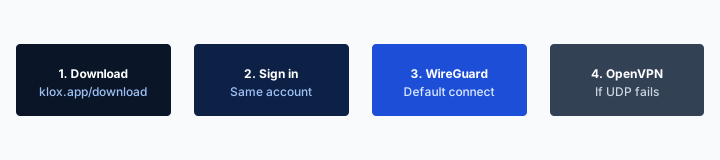
Most smart devices do not support VPN apps. The practical approach is to run the VPN on your router. Every device that uses that router for internet then sends traffic through the VPN tunnel automatically. KloxVPN supports OpenVPN and WireGuard on compatible routers. Once configured, the VPN runs 24/7. New devices you add to the network are protected automatically. There is no per-device setup, no app to install on each thermostat or camera. The router is the single point of control.
| Fact | KloxVPN | Not on this page |
|---|---|---|
| Protocols | WireGuard, OpenVPN, OpenConnect, and Shadowsocks | A third invented protocol |
| Devices | Five simultaneous | Unlimited seats |
| Yearly | From $2.83/month | A fake city count |
| Refund | 7-day, first purchase | An On Demand toggle |
How Router VPN Works
When you configure a VPN client on your router, the router establishes an encrypted tunnel to a VPN server. All traffic from devices on your LAN that goes through the router is routed into this tunnel before reaching the internet. From the perspective of your ISP, they see only encrypted traffic to the VPN server. They cannot see which devices are online or what they are doing. The VPN server decrypts the traffic and forwards it to the intended destination (e.g., a cloud service). The response comes back through the same path. This happens transparently for every device — no configuration needed on each smart home gadget.
Compatible Routers
Not every router supports VPN. You need a router with VPN client capability — either built-in (many Asus, Netgear, Synology, and similar models) or via custom firmware such as OpenWrt or DD-WRT. Check your router's documentation for "VPN client" or "OpenVPN/WireGuard client" support.
WireGuard vs OpenVPN on Routers
WireGuard is lighter and faster, ideal for routers with limited CPU. OpenVPN is widely supported and well-tested. If your router supports both, WireGuard typically delivers better throughput for smart home traffic. KloxVPN provides configuration files for both.
Which Smart Home Devices Benefit Most
Some devices send more sensitive data than others. Prioritize protection for high-value targets. Cameras and doorbells are obvious — they capture video of your home. But even seemingly benign devices like smart plugs or light bulbs can reveal patterns: when you are home, when you sleep, which rooms you use. Router VPN protects all of them uniformly, but understanding the sensitivity helps you prioritize if you ever need to make trade-offs (e.g., split tunneling for a specific device).
vpn for smart home privacy stays on the box. The hop wrap stays in the app.
— KloxVPN operator notes
Security Cameras and Doorbells
Cameras and doorbells stream video and may store it in the cloud. This is among the most sensitive smart home traffic. Encrypting it prevents your ISP from seeing that you use these devices and blocks observers on shared networks from inferring when you are away.
Smart Speakers and Assistants
Voice assistants send audio to cloud servers for processing. While the content may be encrypted by the manufacturer, the connection metadata — when you use the device, how often — is visible to your ISP. Router VPN hides this.
Smart Locks and Garage Openers
Devices that control physical access to your home should have their traffic protected. A VPN adds a layer of defense against network-level observation of when you lock or unlock. Attackers who monitor traffic could infer when you leave or arrive — useful for burglary or social engineering. Encrypting this traffic removes that signal.
Thermostats and Energy Monitors
Smart thermostats and energy monitors report usage patterns. That data can reveal occupancy, daily routines, and when the home is empty. While less sensitive than cameras, it still adds to the profile your ISP or a network observer could build. Router VPN covers these devices along with everything else.
Setting Up Router VPN for Smart Home
A step-by-step approach to configuring your router. The process varies by router manufacturer, but the general flow is the same: obtain credentials, enter them in the router, enable the VPN client, and verify that devices can reach the internet. Most setups take 30-60 minutes for someone familiar with router admin panels.
Obtain VPN Credentials
Log into your VPN provider's dashboard and download OpenVPN or WireGuard configuration files for a server in your region. For smart home traffic, a server in your country minimizes latency and avoids geo-restriction issues with some devices. Most providers offer both .ovpn (OpenVPN) and .conf (WireGuard) files. Choose WireGuard if your router supports it — it is lighter and faster.
Configure the Router
Access your router's admin panel (usually 192.168.1.1 or 192.168.0.1). Navigate to the VPN client section. Upload the config file or enter the WireGuard keys. Enable the VPN client and set it to connect on startup. Save the configuration and reboot the router. After reboot, the VPN should connect automatically. Verify in the router status page that the tunnel is active.
Verify Connectivity
After the VPN connects, check that your smart devices still work. Some devices may need to reconnect to their cloud services. If a device fails — for example, a streaming device that enforces geo-restrictions — try a VPN server in your own country or use split tunneling to exclude that device. Test a few key devices: a camera, a speaker, and a smart plug. If they all work, the rest likely will too.
Split Tunneling and Device Exclusions
Sometimes you need to exclude certain devices from the VPN.
When to Exclude Devices
Some smart TVs, streaming sticks, or gaming consoles enforce geo-restrictions. If they detect traffic from a VPN server in another country, they may block content. In that case, exclude those devices from the VPN and route them directly to the internet.
How Split Tunneling Works on a Router
Advanced routers and custom firmware allow you to assign specific devices to bypass the VPN. The device gets a different routing rule. Not all consumer routers support this; check your model. Alternatively, use a second WiFi network or guest network without VPN for devices that need direct access.
Performance and Limitations
Router VPN has trade-offs.
Throughput
VPN encryption uses CPU. Older or budget routers may top out at 50-100 Mbps through the VPN. For smart home traffic — typically low bandwidth — this is usually sufficient. For 4K streaming or large downloads, consider a router with hardware VPN acceleration or a dedicated VPN-capable device.
Latency
VPN adds a small latency increase (often 5-20 ms with a nearby server). For smart home control and automation, this is negligible. Voice assistants and real-time control work fine.
Single Point of Failure
If the VPN disconnects, traffic may leak until the tunnel is restored. Use a router with a kill switch or auto-reconnect. Some VPN providers offer router firmware with these features built in.
Alternative Approaches: When Router VPN Is Not Feasible
Router VPN is the preferred method, but it is not always possible. In rental housing, you may not control the router. In some setups, the ISP router cannot be replaced or does not support VPN. In those cases, you have workarounds — but they require more effort. The goal is to get VPN between your smart home devices and the internet; the router is simply the most efficient place to do it.
Rental and Shared Housing
If you rent and cannot replace or reconfigure the landlord's router, you have limited options. Use VPN on your personal devices (phone, laptop) for your own traffic. Smart home devices will remain unprotected unless you add a travel router or secondary router that you control.
ISP-Provided Routers
Many ISPs provide routers that do not support VPN client mode. You can add a secondary router behind the ISP router — connect the VPN-capable router to the ISP router, then connect your smart home devices to your router. Your devices use your router for internet; the VPN runs there.
Dedicated IoT VLANs
Advanced users may segment smart home devices on a separate VLAN and route only that VLAN through the VPN. This requires managed switches and router support. For most users, full router VPN is simpler and sufficient.
Combining Router VPN with Other Smart Home Security
VPN is one layer. Combine it with other practices for defense in depth.
Strong Passwords and Updates
Use unique, strong passwords for each smart home device and its associated app. Enable automatic firmware updates where available. Many breaches occur through default credentials or unpatched vulnerabilities, not network interception.
Network Segmentation
If your router supports guest networks or VLANs, put smart home devices on a separate network from your computers and phones. This limits lateral movement if a device is compromised. Router VPN still protects the IoT segment's outbound traffic.
Review Permissions
Check what data each smart home app collects and shares. Disable unnecessary cloud features where possible. Some devices work fully local; others require cloud. Choose devices with privacy-respecting defaults when you can.
Troubleshooting Common Router VPN Issues
When things go wrong, systematic checks usually find the cause.
Devices Cannot Reach the Internet
If devices lose connectivity after enabling VPN, the tunnel may be up but routing may be wrong. Check that the VPN client is set to route all traffic through the tunnel (full tunnel, not split). Verify DNS is set correctly — some configs require manual DNS. Restart the router and reconnect.
Slow Performance After Enabling VPN
Older routers may struggle with encryption. Try WireGuard instead of OpenVPN — it is lighter. Use a server geographically close to you. If the router has a "VPN acceleration" or "hardware crypto" option, enable it. Consider upgrading to a router with better VPN throughput.
VPN Disconnects Frequently
Unstable connections cause reconnects. Enable auto-reconnect in the VPN client settings. Check if your ISP changes your IP frequently (some do); that can break long-lived tunnels. Use a VPN provider with stable servers and good uptime.
Future of Smart Home Privacy
Trends that may affect how we protect IoT traffic.
Matter and Local-First Standards
Matter is a new smart home standard that emphasizes local control. Devices that support Matter may reduce cloud dependency, which reduces the amount of traffic that leaves your network. VPN still protects whatever traffic does go out.
Regulation and Data Practices
Privacy regulations are evolving. Some jurisdictions may require manufacturers to disclose data practices more clearly or limit data collection. Regardless, encrypting traffic at the router remains under your control and adds protection regardless of manufacturer behavior.
VPN on Individual Devices: When It Is an Option
A few smart devices — some Android TV boxes, certain NAS units — can run VPN apps directly. For those, you have a choice: device-level VPN or router VPN. Router VPN is simpler to manage at scale; device-level VPN gives you per-device control. For most users, router VPN is the better default. If you have one or two devices that support VPN and the rest do not, router VPN still covers everything with one configuration. Only consider per-device VPN when you need different regions or rules for specific devices (e.g., one TV for local streaming, another for international content).
Choosing a VPN Provider for Router Use
Not all VPN providers support router deployment equally.
Router Compatibility
The provider must offer OpenVPN or WireGuard configuration files suitable for router clients. Some providers offer pre-configured router firmware or detailed router setup guides. Check the provider's documentation before subscribing.
Server Locations
For smart home traffic, you typically want a server in your own country to avoid geo-restriction issues. Ensure the provider has servers in your region. Multiple server options give you fallback if one has issues.
No-Logs and Jurisdiction
Your smart home traffic flows through the VPN provider's servers. Choose a provider with a clear no-logs policy and a jurisdiction that respects privacy. Your router VPN protects you from your ISP; the VPN provider becomes the next hop — pick one you trust.
How a tunnel applies to VPN for Smart Home: Why and How to Protect Your IoT Traffic
The SSID string is marketing on the AP. The tunnel is WireGuard, OpenVPN, OpenConnect, and Shadowsocks. Keep those sentences in different rooms. I will not publish a server map here. I will publish WireGuard, OpenVPN, OpenConnect, and Shadowsocks, five devices, $2.83/mo on yearly, and the portal order. [Captive portal]({portal}) is the garden. VPN is the truck after. Mix the order and you get a loop or a leak, not a new feature. If UDP dies on VPN for Smart Home: Why and How to Protect Your IoT Traffic APs, one protocol swap. Then stop tinkering.
Smart Connect is untrusted Wi-Fi. It is not On Demand. It is not a VPN for Smart Home: Why and How to Protect Your IoT Traffic toggle. Smart Connect belongs on untrusted Wi-Fi. It is not a per-SSID profile named VPN for Smart Home: Why and How to Protect Your IoT Traffic. I will not claim SOC 2 or a server map here. I will claim WireGuard, OpenVPN, OpenConnect, and Shadowsocks and the portal-then-Connect order. VPN for Smart Home: Why and How to Protect Your IoT Traffic Wi-Fi is shared. Finish the portal. Then WireGuard, OpenVPN, OpenConnect, and Shadowsocks.
Captive pages see the first request. Fire the tunnel too early and the sign-in never opens. Never fire it and the LAN keeps reading destinations. Shared kitchens and coworking APs still NAT you. VPN for Smart Home: Why and How to Protect Your IoT Traffic is just the label on this URL. HTTPS on the website is not a hop wrap. RFC 8446 is TLS. Different job from Connect on VPN for Smart Home: Why and How to Protect Your IoT Traffic Wi-Fi. Send this slug when someone asks for a special VPN for Smart Home: Why and How to Protect Your IoT Traffic profile. There is not one.
The hop wrap here
Someone else owns the AP on VPN for Smart Home: Why and How to Protect Your IoT Traffic networks. Guest SSIDs still NAT you. That is the whole physics lesson. Yearly $2.83/mo on yearly does not change on VPN for Smart Home: Why and How to Protect Your IoT Traffic Wi-Fi. 7-day money-back on first purchase does not change either. Klox is five devices, yearly from $2.83/mo on yearly, 7-day money-back on first purchase. There is no VPN for Smart Home: Why and How to Protect Your IoT Traffic SKU and no city count on this page. The SSID label does not change the physics. Wrap after sign-in.
Leak tests belong after Connect, not while the VPN for Smart Home: Why and How to Protect Your IoT Traffic sign-in page is still painting. If someone asks for a VPN for Smart Home: Why and How to Protect Your IoT Traffic mode, send this slug. Same apps. same four protocols. WireGuard is fast when UDP lives. OpenVPN is the spare tire when a filter eats handshake packets. One swap. Then stop. You are done when Connect is up and the portal is in the past. Not when you renamed a sysctl.
This page exists because people search "VPN for Smart Home: Why and How to Protect Your IoT Traffic VPN" when they mean "I am on a network I do not run." Fair. Here is the habit. Open a browser first. If the garden needs a click, give it the click. Then open Klox. That order fixes most VPN for Smart Home: Why and How to Protect Your IoT Traffic loops. A QR by the kettle is still a captive garden. Finish it. Then Connect. Then test leaks if you care. Apps at /download. Plans at /pricing. Garden in the browser. Tunnel in the app.
Related product pages
The front desk can print a QR. The kettle can sit next to a portal. Neither object wraps a hop. VPN for Smart Home: Why and How to Protect Your IoT Traffic Wi-Fi still needs Connect after sign-in. Do not invent a city because the SSID mentioned a brand. Connect to a node. That is enough. Once Klox is up, inner DNS and inner sites go through the tunnel. The LAN still sees a blob to a node you chose. That is success, not a bug. Treat VPN for Smart Home: Why and How to Protect Your IoT Traffic like a hotel SSID even when the branding looks official.
This slug is a habit page for VPN for Smart Home: Why and How to Protect Your IoT Traffic networks, not a new SKU. Device limit stays five devices. Yearly stays $2.83/mo on yearly. Guest VLANs can isolate you and still see destinations until the tunnel is up. Isolation is not a wrap. Inner packets stay inner. Outer header goes to a node. VPN for Smart Home: Why and How to Protect Your IoT Traffic NAT still exists. You wanted that. Portal first. Handshake second. Leak test third. That is the whole checklist.
If the page loops, you probably raced the tunnel. Drop it. Finish the garden. Connect again. That is the VPN for Smart Home: Why and How to Protect Your IoT Traffic recovery. Five seats means five devices total, not five devices per VPN for Smart Home: Why and How to Protect Your IoT Traffic location. Share inside the cap. Keep the ritual small. Join VPN for Smart Home: Why and How to Protect Your IoT Traffic Wi-Fi. Finish the page. Connect. Work. That is the complete consumer flow. No VPN for Smart Home: Why and How to Protect Your IoT Traffic mode. Same apps. Same five devices. Same yearly $2.83/mo on yearly.
Key Takeaways
A VPN on your router is a single change that protects every smart home device behind it. Combine it with strong passwords and regular updates for a solid baseline. Most smart devices cannot run VPN themselves; the router is the only practical place to add this protection. Choose a server in your region to avoid geo-restriction issues, and verify that critical devices still work after setup. For cameras, assistants, and access-control devices, router VPN significantly reduces the visibility of your smart home traffic to your ISP and to others on shared networks.
If your router does not support VPN, add a secondary VPN-capable router behind your ISP router. Connect your smart home devices to your router; the VPN runs there. The setup takes an hour or two. The protection lasts as long as the VPN is connected. For anyone with more than a handful of smart devices, router VPN is the most efficient way to add privacy to IoT traffic.
Start with the basics: strong passwords on every device, automatic updates enabled, and a VPN on the router. Add network segmentation if your router supports it. Review device permissions and disable cloud features you do not need. Router VPN is the foundation; these practices complete the picture. KloxVPN supports OpenVPN and WireGuard on compatible routers. One subscription covers your entire network — every smart home device behind the router is protected with a single configuration. Check the Router VPN and VPN for Smart Home pages for setup guides and compatible router models. The investment in setup time pays off in ongoing privacy for every device you add to your home network. New devices are protected automatically as soon as they connect.
Related Resources
Protect Your Smart Home
KloxVPN works on compatible routers. One subscription covers your whole network.
VPN for Smart HomeFrequently Asked Questions
KloxVPN Team
Experts in VPN infrastructure, network security, and online privacy. The KloxVPN team has been building and operating VPN services since 2019, providing consumer and white-label VPN solutions to thousands of users worldwide.