
Use a VPN on any network you do not fully trust: public WiFi, hotel, airport, cafe. That is the minimum. At home, VPN is optional but adds privacy from your ISP. Many users leave it on always for consistency and set-and-forget protection.
The risk varies by network. Public WiFi is high-risk — shared, often unencrypted, and used by strangers. Your ISP at home can see your traffic but is typically less hostile than a random cafe network. Mobile data sits in between: your carrier can see your traffic, but it is not as exposed as public WiFi. A VPN protects on all of them.
Build habits that match your risk tolerance. Minimum: always use VPN on public and travel networks. Never skip there. Maximum: use VPN everywhere, including home. Enable auto-connect so you never forget. This guide covers when to use VPN, habit-building tips, and the trade-offs of always-on vs situational use.
Consistency reduces cognitive load. If you use VPN only sometimes, you must remember when. Forgetting on public WiFi defeats the purpose. Auto-connect removes that burden — the VPN starts whenever you join a network. Set it and forget it.
Your threat model shapes your habits. If you are mainly concerned about cafe and hotel WiFi, situational use is enough. If you want to limit what your ISP knows about you — and what they could be compelled to share — always-on at home adds value. Journalists, activists, and users in sensitive professions may need maximum protection. Casual users may be fine with minimum. There is no single right answer; match the habit to your needs.
Device type matters. Phones and laptops move between networks constantly; they benefit most from auto-connect. Desktops often stay on one network; VPN use there is more optional. Configure each device for how you use it. A one-size-fits-all rule is less useful than device-specific habits.
Related reading: How to Use a VPN on Public WiFi Safely and VPN Travel Checklist: Before You Go. VPN Auto-Connect: When to Use It and Family VPN on Five Devices. What is a VPN? and Download KloxVPN.
Looking for a reliable VPN?
KloxVPN — from $2.83/month. Apps for every device.
VPN and Specific Activities
Some activities benefit more from VPN than others.

- 1Skim the seating / order diagram.
- 2Do the numbered steps once on your real network.
- 3Use the FAQ if a sentence was too long.
- 4Follow one related article — not ten tabs.
How to read this page
Banking and Financial
Banking uses HTTPS. VPN adds a second layer and hides your IP. On public WiFi, VPN is strongly recommended. At home, optional but adds privacy from your ISP.
Streaming and Entertainment
Streaming may be throttled by your ISP. VPN can bypass that. For geo-restricted content, use a server in the target region. Connect before opening the app.
Work and Email
Work email and tools may contain sensitive data. On public WiFi, VPN encrypts everything. At home, corporate VPN may be required for work; personal VPN protects personal browsing.
Always Use VPN On
These networks are high-risk. Never skip the VPN.
| Fact | KloxVPN | Not on this page |
|---|---|---|
| Protocols | WireGuard, OpenVPN, OpenConnect, and Shadowsocks | A third invented protocol |
| Devices | Five simultaneous | Unlimited seats |
| Yearly | From $2.83/month | A fake city count |
| Refund | 7-day, first purchase | An On Demand toggle |
Public WiFi
Cafes, airports, hotels, libraries. Shared networks. Others can intercept. Encrypt before connecting.
Travel
Hotel, airport, roaming. You do not control these networks. VPN is non-negotiable.
Any Unknown or Shared Network
Guest WiFi, co-working spaces, university networks. If you do not fully trust it, use VPN.
VPN and Work-from-Home
Remote work has increased VPN use.
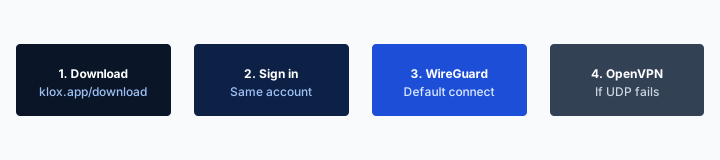
vpn when to use daily stays on the box. The hop wrap stays in the app.
— KloxVPN operator notes
Corporate VPN vs Personal
Work may require a corporate VPN for internal resources. Personal VPN protects personal browsing. You typically use one or the other — not both simultaneously.
Home Office Security
Home networks are generally safer than public WiFi. VPN still encrypts traffic from your ISP. For sensitive work, VPN adds a layer. Check employer policy.
Optional at Home
Home WiFi is more trusted. VPN still adds value.
ISP Visibility
Your ISP can see your traffic. They may log it, throttle it, or sell insights. A VPN hides it.
Consistency
Many users leave VPN on at home for simplicity. One setting, full protection. No need to remember when to connect.
When to Skip at Home
If you need local network access (NAS, printer) and do not have split tunneling, you may disconnect temporarily.
Mobile Data
Your carrier can see cellular traffic. VPN encrypts it.
Same as WiFi
Use VPN on mobile data too. Your carrier has the same visibility as an ISP. Encrypt it.
Auto-Connect
Enable auto-connect on all networks. When you switch from WiFi to cellular, the VPN stays on.
When to Disconnect (Rarely)
Most users should rarely disconnect. A few cases justify it.
Local Network Access
If you need to access a NAS, printer, or smart home device and your VPN does not support split tunneling or LAN bypass, disconnect temporarily. Prefer VPNs with split tunneling.
Apps That Block VPN
Some banking or work apps block VPN. If you must use them and they will not work with VPN, disconnect for that session only. Reconnect immediately after.
Troubleshooting
When debugging connectivity, disconnect to isolate whether the VPN is the cause. Reconnect once the issue is resolved.
Habit-Building Tips
Make VPN use automatic.
Auto-Connect
Enable auto-connect on untrusted networks or on all networks. You never forget.
Connect Before Apps
Establish the VPN before opening browsers, email, or apps. They connect as soon as they launch.
Kill Switch
Enable the kill switch. If the VPN drops, no traffic leaks.
VPN and Device Types
Different devices have different VPN habits.
Phone and Tablet
Mobile devices connect to many networks — home, work, cafe, transit. Enable auto-connect so the VPN starts on every network. Mobile carriers can see cellular traffic; VPN encrypts it. Keep the VPN app updated and allow it to run in the background.
Laptop
Laptops move between networks frequently. Auto-connect on untrusted networks is essential. When traveling, connect before joining hotel or airport WiFi. At home, VPN is optional but adds ISP privacy.
Desktop
Desktops typically stay on one network. If that network is home broadband, VPN is optional. If you work from home on a desktop, consider VPN for personal browsing separate from work.
VPN and Time of Day
When you use the internet affects risk.
Commute and Travel
Transit often means public WiFi or mobile data. Both benefit from VPN. Connect before opening any app. Auto-connect handles this if configured.
Work Hours
If you use corporate VPN for work, switch to personal VPN for personal browsing during breaks. Do not mix work and personal traffic on the same tunnel.
Evening and Weekend
At home, VPN use is optional. Many users leave it on for consistency. Streaming, browsing, and shopping all benefit from encryption.
Family and Household VPN
Multiple users and devices complicate VPN habits.
Router VPN
A router with VPN protects every device behind it. No need to configure each device. Good for households that want full protection without managing individual apps.
Per-Device VPN
If not using router VPN, each device needs its own VPN app. Enable auto-connect on all. Choose a VPN with enough simultaneous connections for your household.
Kids and Shared Devices
Shared family devices should use VPN on untrusted networks. Configure auto-connect so children do not need to remember. Parental controls are separate from VPN.
VPN and Smart Home
Smart home devices and VPN can conflict.
Local Control
Smart home hubs and devices often need local network access. If your VPN does not support split tunneling or LAN bypass, you may need to exclude those devices or disconnect for local control.
Router VPN Impact
Router VPN affects all devices. Smart home devices that need to reach cloud services may work through the VPN. Devices that need local discovery (e.g., Chromecast) may have issues. Test your setup.
VPN and Online Shopping
Shopping involves payment and personal data. VPN adds a layer.
Payment Security
E-commerce sites use HTTPS. VPN adds encryption from your device to the VPN server; HTTPS covers the rest. On public WiFi, that double layer protects payment data from local interception. At home, VPN is optional — but it hides your shopping activity from your ISP. Some users prefer that.
Price Discrimination
Some sites show different prices by location. A VPN can change your apparent location — but that may trigger fraud checks or show prices for the wrong region. For routine shopping in your country, your normal IP is usually fine. For accessing region-specific deals, VPN can help — use a server in the target region.
Account Security
VPN does not protect against account takeover or credential theft. Use strong passwords and 2FA for shopping accounts. VPN protects the connection; you protect the account. On public WiFi, VPN is recommended for any shopping — it prevents session hijacking and packet sniffing.
VPN and Healthcare Portals
Health data is sensitive. VPN adds protection.
Telehealth and Patient Portals
Telehealth visits and patient portals transmit health information. On public WiFi, that traffic could be intercepted. VPN encrypts it. At home, your ISP can see that you connected to a healthcare portal — though not the content, if HTTPS is used. VPN hides even the destination from your ISP. For maximum privacy, use VPN when accessing health data.
HIPAA and Compliance
Healthcare providers must comply with HIPAA and similar regulations. VPN does not make you compliant — that is the provider's responsibility. VPN protects your connection when you access their services. If you work in healthcare and access patient data remotely, your employer may require a specific VPN. Personal VPN protects your personal health portal access.
When to Use
Any time you access health records, schedule appointments, or use telehealth — especially on public or shared networks — use a VPN. At home, it is optional but adds privacy from your ISP. Health data is among the most sensitive; treat it accordingly.
VPN and Social Media
Social platforms collect a lot. VPN affects what they see.
IP and Location
Social platforms use your IP for location, ad targeting, and security. A VPN masks your IP — they see the VPN server's location instead. That can reduce location-based tracking and ad precision. It does not stop the platform from tracking you via account, cookies, or device fingerprinting. VPN is one layer.
Access Restrictions
Some countries restrict or block social platforms. A VPN can help access them — but check local laws. Using VPN to circumvent blocks may be illegal. For privacy within allowed access, VPN masks your IP from the platform and your network.
Public Posting
If you post from public WiFi, VPN encrypts the connection. That prevents someone on the network from intercepting your session or impersonating you. For high-profile accounts or sensitive discussions, VPN on public networks is recommended.
Building a VPN Routine
Habits stick when they are simple and automatic.
Morning Check
If you use VPN situationally, make "connect before opening anything" part of your morning routine when leaving home. Open VPN app, connect, then open browser or email. Same for phones — connect before you start scrolling. A 5-second habit prevents hours of unprotected use.
Travel Ritual
When you arrive at a hotel or cafe, connect before joining the WiFi. Some users connect while still on cellular, then switch to WiFi — the VPN stays on. Establish a ritual: sit down, connect VPN, then open laptop. Repetition builds the habit.
End-of-Day
If you disconnect for local network access at home, set a reminder to reconnect when done. Or use split tunneling so you never need to disconnect. The goal is to minimize unprotected time. For always-on users, there is nothing to remember — the VPN handles it.
VPN and Government or Sensitive Access
Extra care for high-sensitivity use cases.
Government Services
Accessing government portals — tax, benefits, licenses — involves sensitive data. Use VPN on public WiFi. At home, VPN is optional but adds a layer. Some government sites may block or flag VPN IPs; if you encounter issues, try a server in your country or disconnect for that session. Balance access with protection. Never access government portals on public computers without VPN. Use your own device when possible.
Legal and Financial
Legal documents, court filings, and financial records are highly sensitive. Never access these on public WiFi without VPN. Consider VPN even at home for an extra layer of ISP privacy. Use strong passwords and 2FA on these accounts regardless of VPN. Connect before opening the browser or app.
Journalism and Activism
Users in sensitive professions may need maximum protection. Always-on VPN, preferably with a no-logs provider in a privacy-friendly jurisdiction. Consider Tor for the most sensitive communications. VPN is a baseline; layer additional tools as needed.
VPN and Messaging Apps
Messaging apps send sensitive data. VPN protects the path.
End-to-End Encryption
Apps like Signal and WhatsApp use end-to-end encryption. The message content is encrypted from sender to recipient. VPN adds another layer: it encrypts the path from your device to the internet. On public WiFi, that prevents local interception of the connection. Use both for strongest protection.
Metadata
VPN hides your IP from the messaging provider. They see the VPN server's IP instead. That limits what they can infer about your location. Metadata — who you message, when — is still visible to the provider. VPN does not hide that.
When to Use
On public WiFi, use VPN for any messaging. At home, optional. For sensitive conversations, VPN adds a layer. Combine with apps that offer end-to-end encryption for strongest protection. Enable auto-connect so you never forget. Messaging apps connect as soon as you open them; have the VPN up first.
VPN and Download Activity
Downloads can expose your IP and activity.
Torrenting
Torrent clients expose your IP to other peers. Without VPN, anyone in the swarm can see your IP. Use VPN for any torrenting — and ensure the kill switch is on so your real IP does not leak if the VPN drops. Some VPNs restrict or prohibit torrenting; check the terms.
File Downloads
Regular HTTP/HTTPS downloads go through the VPN when it is connected. The download source sees the VPN IP, not yours. On public WiFi, VPN protects the download from local interception. Connect before starting large downloads.
Software Updates
System and app updates can use significant bandwidth. They go through the VPN when it is connected. If you use VPN at home, updates are encrypted from your ISP's perspective. No special configuration needed — the VPN handles it. Large updates may take longer through a distant server; use a nearby server if speed matters.
How a tunnel applies to When to Use a VPN Daily: Habits That Help
Leak tests belong after Connect, not while the When to Use a VPN Daily: Habits That Help sign-in page is still painting. If someone asks for a When to Use a VPN Daily: Habits That Help mode, send this slug. Same apps. same four protocols. [Captive portal]({portal}) is the garden. VPN is the truck after. Mix the order and you get a loop or a leak, not a new feature. If UDP dies on When to Use a VPN Daily: Habits That Help APs, one protocol swap. Then stop tinkering.
When to Use a VPN Daily: Habits That Help is a convenient name for a shared hop. It is not a VPN profile and not a city. Do not paste sysctls because a When to Use a VPN Daily: Habits That Help AP was rude. Consumer move is protocol swap. Lab move is a different desk. Do not paste sysctls into the app because a When to Use a VPN Daily: Habits That Help AP was rude. Protocol swap is the consumer move. Kernel knobs are a lab move. Land, sign in, wrap. Repeat it until it is boring. Boring is the goal.
Airport, hotel, campus, When to Use a VPN Daily: Habits That Help: the label changes. The hop does not. Untrusted LAN, then wrap. I will not publish a server map here. I will publish WireGuard, OpenVPN, OpenConnect, and Shadowsocks, five devices, $2.83/mo on yearly, and the portal order. HTTPS on the website is not a hop wrap. RFC 8446 is TLS. Different job from Connect on When to Use a VPN Daily: Habits That Help Wi-Fi. Treat When to Use a VPN Daily: Habits That Help like a hotel SSID even when the branding looks official.
What success looks like
If the page loops, you probably raced the tunnel. Drop it. Finish the garden. Connect again. That is the When to Use a VPN Daily: Habits That Help recovery. Five seats means five devices total, not five devices per When to Use a VPN Daily: Habits That Help location. Share inside the cap. I will not claim SOC 2 or a server map here. I will claim WireGuard, OpenVPN, OpenConnect, and Shadowsocks and the portal-then-Connect order. Send this slug when someone asks for a special When to Use a VPN Daily: Habits That Help profile. There is not one.
Someone else owns the AP on When to Use a VPN Daily: Habits That Help networks. Guest SSIDs still NAT you. That is the whole physics lesson. If both protocols fail, check whether you ever left the garden. WAN first. Then handshake. Then leak test. If you need a plan, /pricing. If you need the binary, /download. If you need the garden to open, use a browser first. When to Use a VPN Daily: Habits That Help Wi-Fi is shared. Finish the portal. Then WireGuard, OpenVPN, OpenConnect, and Shadowsocks.
The front desk can print a QR. The kettle can sit next to a portal. Neither object wraps a hop. When to Use a VPN Daily: Habits That Help Wi-Fi still needs Connect after sign-in. Guest VLANs can isolate you and still see destinations until the tunnel is up. Isolation is not a wrap. Keep the ritual small. Join When to Use a VPN Daily: Habits That Help Wi-Fi. Finish the page. Connect. Work. That is the complete consumer flow. The SSID label does not change the physics. Wrap after sign-in.
What not to invent
On When to Use a VPN Daily: Habits That Help networks the portal wants a browser. The tunnel wants a handshake. Do them in that order. When UDP dies, one OpenVPN attempt is the spare tire. A third client is how you create two default routes. If WireGuard hangs for a minute on When to Use a VPN Daily: Habits That Help Wi-Fi, wait out the portal, confirm you have a WAN, then try OpenVPN once. No When to Use a VPN Daily: Habits That Help mode. Same apps. Same five devices. Same yearly $2.83/mo on yearly.
This slug is a habit page for When to Use a VPN Daily: Habits That Help networks, not a new SKU. Device limit stays five devices. Yearly stays $2.83/mo on yearly. Hotel, airport, campus, When to Use a VPN Daily: Habits That Help: same NAT story. You are a guest. Guests get wrapped after sign-in. Cookies: /cookie. That is this website. It is not the tunnel and not the portal. You are done when Connect is up and the portal is in the past. Not when you renamed a sysctl.
I treat When to Use a VPN Daily: Habits That Help Wi-Fi like any hotel or cafe: land, sign in, then wrap. Skip a step and the garden loops or destinations stay visible. If the page loops after you already connected, drop the tunnel, finish the garden, connect again. Do not reboot the phone first. Phone hotspot versus When to Use a VPN Daily: Habits That Help AP: different radios, same rule. Untrusted hop, then wrap, then work. Apps at /download. Plans at /pricing. Garden in the browser. Tunnel in the app.
Key Takeaways
Minimum: use VPN on public WiFi and when traveling. Never skip there. Maximum: use VPN everywhere — home, mobile, travel. Enable auto-connect so you never forget.
Your ISP can see your traffic at home. Your carrier can see it on mobile. VPN encrypts both. For set-and-forget protection, leave it on always. For situational use, at least never skip on public and travel networks. Disconnect only when necessary — local network access, apps that block VPN, or troubleshooting. Reconnect as soon as the task is done. The kill switch ensures that if the VPN drops, no traffic leaks until you are back. Different devices need different habits: mobile benefits most from auto-connect; desktops may use VPN only for personal browsing. Households can use router VPN for full coverage or per-device apps with enough simultaneous connections. Smart home devices may require split tunneling or LAN bypass.
Use VPN for online shopping and healthcare portals on public WiFi — both involve sensitive data. Social media benefits from VPN when you want to limit IP-based tracking. Build simple routines: connect before opening apps in the morning, connect before joining new networks when traveling. Match your habits to your threat model. The more automatic, the better — auto-connect removes the need to remember. Use VPN for torrenting and downloads to hide your IP from peers and protect the connection. Government and legal access deserves extra care. Journalists and activists may need maximum protection with always-on VPN and additional tools. Router VPN protects all household devices. Match your habits to your threat model. Enable auto-connect so you never forget. Public WiFi and travel are non-negotiable; use VPN there always. At home, VPN is optional but adds ISP privacy. Enable auto-connect for set-and-forget protection. Build habits that match your risk tolerance. Never skip on public WiFi. Travel networks require VPN too. Enable the kill switch for full protection.
Related Resources
Frequently Asked Questions
KloxVPN Team
Experts in VPN infrastructure, network security, and online privacy. The KloxVPN team has been building and operating VPN services since 2019, providing consumer and white-label VPN solutions to thousands of users worldwide.